Inactivating a Prescription
After a prescription is processed, it is flagged as active on the Patient Profile. If the patient is no longer actively taking a medication, the prescription should be inactivated. It is important that you inactivate the drugs that a patient is not currently taking. This makes their Profile more accurate and allows for more efficient medication reviews.
A notes function allows you to document the reason for inactivating a prescription. The note is visible from the Notes tab when the prescription is detailed. The user who performed the inactivation and the date and time it occurred is also displayed in the note, regardless if any text was entered in the note.

Select the applicable tab to learn about inactivating prescriptions in your province.
For prescriptions that exist locally, only certain status changes will transmit to the EHR. These include the Discontinue/Obsolete and Revoke status changes. The Inactivate and Suspend/Resume status changes are performed locally only. Updating the status of local prescriptions maintains good profile hygiene in cases where the prescription authorization has been revoked or discontinued.
The status of a prescription can be updated from the following locations:
 From Intake
To update the status of a prescription from Intake:
-
From the Workbench, Patient Profile, or Fax tile, select Intake.
-
Search for and select the patient, if they are not already entered.
-
Do one of the following:
-
Select the Profile button.
-
Select the Patient Folder button
 at the top right.
The Patient Profile opens.
-
-
Uncheck the Active checkbox for the prescription that needs to be inactivated. The Inactivate Rx window opens.
-
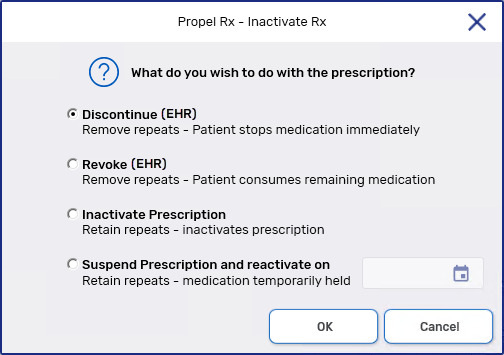
Select one of the following options:
-
Discontinue (Obsolete on the EHR) – patient will no longer take the medication, effective immediately. Repeats are removed.
-
Revoke (Completed on the EHR) – patient will take the remaining medication until finished and then stop. Repeats are removed. This status change is only permitted if there are no dispenses against the prescription.
-
Inactivate – patient is not currently taking medication but may resume later. Repeats are retained.
-
Suspend – patient will stop the medication for a specific period and then resume on a chosen date. Repeats are retained.
-
-
Select OK.
-
If Discontinue or Revoke was selected, an additional window appears.
-
Select a reason from the dropdown.
-
To add MMI and CS codes:
-
Select the expander button
 .
. -
Dropdown the appropriate MMI header.
-
Double-click on the appropriate CS code or select the CS code and select the >> button.
-
Repeat steps ii – iii to add additional CS codes, up to a maximum of 7 if needed.
-
Select OK.
-
-
Enter any optional notes. These are not transmitted to the EHR.
-
-
Select OK.
-
If applicable, a message will be sent to update the status of the selected prescription on the EHR. If successful, the prescription is flagged as inactive on the Patient Profile in Propel Rx with one of the following indicators:
-
Discontinued = *D*
-
Revoked = *V*
-
Inactivated = *I*
-
Suspended = *S*
-
-
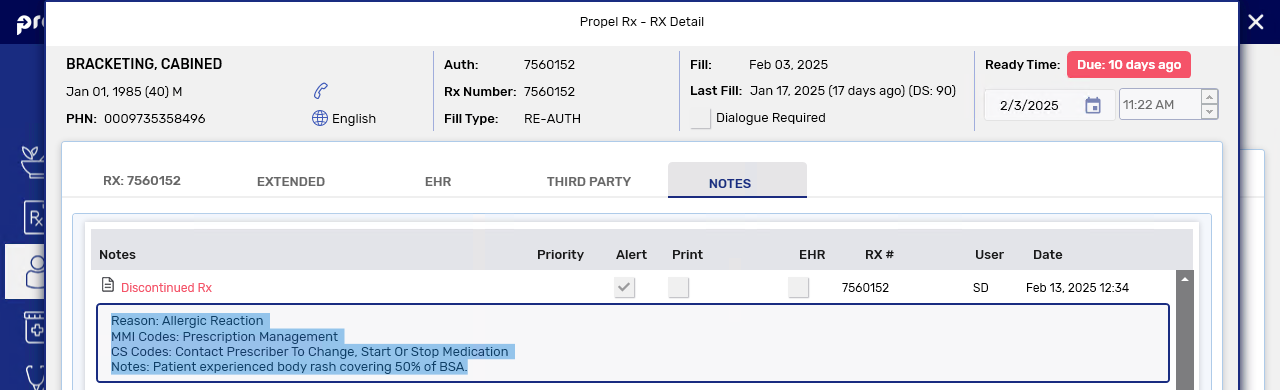
A note is added to the prescription indicating the status change, reason, MMI and CS codes, and notes entered at the time of the update.
The MMI and CS codes entered for the status change are not visible from the Rx Authorizations Profile. However, they can be referenced from the Prescription note in Propel Rx.
-
A record is added to the Patient FolderHistory tab to document the status change of the prescription.
-
If a status update fails on the EHR, the prescription status will remain unchanged locally. Depending on the rejection returned, update the status of the prescription from the Rx Authorizations Profile or perform an EHR Profile Compare to ensure the prescription has the most up-to-date status synced from the EHR.
-
If the prescription is non-retail, the Group Rx Status is changed to an inactive one (I for regular prescriptions and F for government prescriptions).
-
From the Patient Folder
To update the status of a prescription from the Patient Folder:
-
Open the Patient Folder. The Profile tab opens by default.
-
Uncheck the Active checkbox for the prescription that needs to be inactivated. The Inactivate Rx window opens.

-
Select one of the following options:
-
Discontinue (Obsolete on the EHR) – patient will no longer take the medication, effective immediately. Repeats are removed.
-
Revoke (Completed on the EHR) – patient will take the remaining medication until finished and then stop. Repeats are removed. This status change is only permitted if there are no dispenses against the prescription.
-
Inactivate – patient is not currently taking medication but may resume later. Repeats are retained.
-
Suspend – patient will stop the medication for a specific period and then resume on a chosen date. Repeats are retained.
-
-
Select OK.
-
If Discontinue or Revoke was selected, an additional window appears.
-
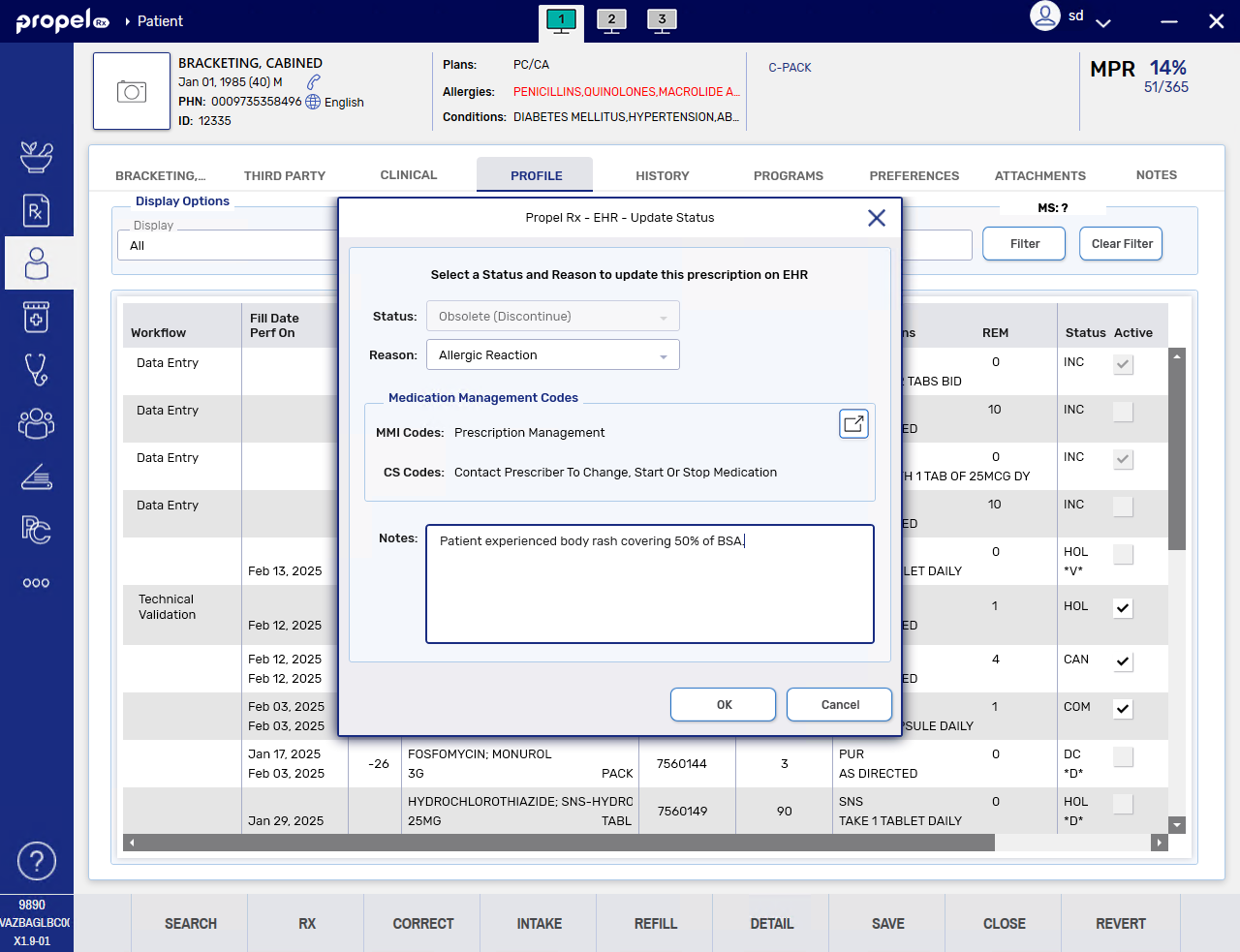
Select a reason from the dropdown.
-
To add MMI and CS codes:
-
Select the expander button
. -
Dropdown the appropriate MMI header.
-
Double-click on the appropriate CS code or select the CS code and select the >> button.
-
Repeat steps ii – iii to add additional CS codes, up to a maximum of 7 if needed.
-
Select OK.
-
-
Enter any optional notes. These are not transmitted to the EHR.
-
-
Select OK.
-
If applicable, a message will be sent to update the status of the selected prescription on the EHR. If successful, the prescription is flagged as inactive on the Patient Profile in Propel Rx with one of the following indicators:
-
Discontinued = *D*
-
Revoked = *V*
-
Inactivated = *I*
-
Suspended = *S*
-
-
A note is added to the prescription indicating the status change, reason, MMI and CS codes, and notes entered at the time of the update.
The MMI and CS codes entered for the status change are not visible from the Rx Authorizations Profile. However, they can be referenced from the Prescription note in Propel Rx.
-
A record is added to the Patient Folder History tab to document the status change of the prescription.
-
If a status update fails on the EHR, the prescription status will remain unchanged locally. Depending on the rejection returned, update the status of the prescription from the Rx Authorizations Profile or perform an EHR Profile Compare to ensure the prescription has the most up-to-date status synced from the EHR.
-
If the prescription is non-retail, the Group Rx Status is changed to an inactive one (I for regular prescriptions and F for government prescriptions).
-
If your pharmacy does not have Real-Time Integration (RTI) enabled, refer to the Other Provinces tab on this page.
When a prescription is inactivated, the following validations will be performed against the patient’s sync status:
-
If the patient is not synced, a prompt will block you from inactivating the prescription until you attempt to sync the patient. To qualify as a sync attempt, at minimum, you must select the PHN expander button in the Patient Folder. If you attempted to sync the patient but it was unsuccessful, the prompt will not appear again for that patient till the next day. If the prescription is inactivated when the patient is not synced, the status change will not be transmitted to the EHR.
-
If the patient is synced with their secondary PHN, a Detected Issue will be returned, and you will be required to resync the patient with their primary PHN to continue.
The only exceptions to the sync requirement are the acceptable non-EHR patient statuses. Prescriptions for these patients may be inactivated but the status changes are not transmitted to the EHR.
A notes function allows you to document the reason for inactivating a prescription. The note is visible from the following locations:
-
Rx Detail Notes tab when the prescription is detailed.
-
EHR Profile if the note was transmitted to the EHR. The note is attached to the Create by default.
For more information on updating prescription statuses, refer to the Inactivating a Prescription section of the Alberta RTI User Guide.
A prescription can be inactivated locally within Propel Rx and on the EHR. To update the status of a prescription on the EHR, the prescription must reside on the local database. To update the status of a prescription that was not dispensed at your pharmacy, see Updating the Status of a Non-Local Prescription.
When a full EHR Profile is displayed, the status of the prescription is also displayed. The following are some possible statuses when viewing a patient's EHR.
| Status | Comments |
|---|---|
| Active | Rx is active and being taken by the patient. |
| Aborted | Rx has been Discontinued. Patient should stop this medication. |
| Revoked | Rx has been Discontinued. Patient is continuing to take the remainder of this medication. |
| Suspended | Rx is still active, however the patient has been asked to stop taking it for a time period. |
| Resumed | Rx is still active. The patient can resume use of this medication. |
| Completed | Rx is complete. No refills exist and the use of time has been exceeded. |
| Complete | Propel Rx status for a local only prescription. |
The status of a prescription can be updated from the following locations:
From Intake
To update the status of a prescription from Intake:
-
From the Workbench, Patient Profile, or Fax tile, select Intake.
-
Search for and select the patient, if they are not already entered.
-
Do one of the following:
-
Select the Profile button.
-
Select the Patient Folder button
at the top right.
The Patient Profile opens.
-
-
Uncheck the Active checkbox for the prescription that needs to be inactivated. The Inactivate Rx window opens.
-
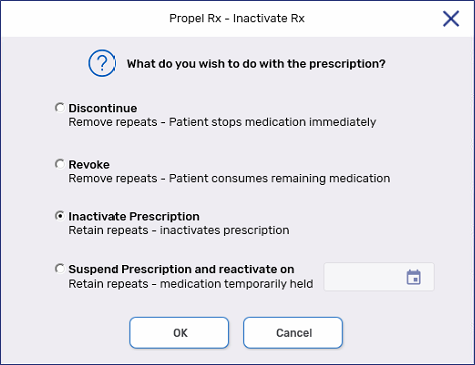
Select the appropriate option.
-
Discontinue - patient will no longer take the medication, effective immediately. Repeats are removed.
-
Revoke - patient will take remaining medication until finished and then stop. Repeats are removed.
-
Inactivate - patient is not currently taking medication but may resume at a later date. Repeats are retained.
-
Suspend - patient will stop medication for a specific period and then resume on a chosen date. Repeats are retained.
If a Detected Issue is returned for the prescription's reactivation, the transaction is placed in the EHR Queue for you to manage. The prescription's status remains unchanged until the transaction is sent to the EHR.
-
-
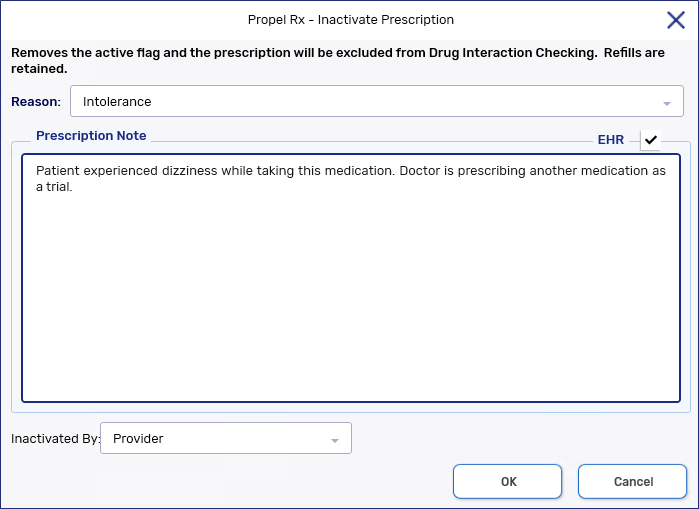
Select OK. A window appears for additional information.
-
Enter or select the following:
-
Reason
-
Prescription Note - this field is optional.
-
EHR - select this checkbox if you want to transmit the note to DIS.
-
Inactivated By - this field is optional.
-
-
Select OK. The Inactivate Rx window closes.
-
Select Save.
-
The prescription is updated on the Profile and EHR to reflect the inactivation.
-
Discontinued prescription = *D*
-
Revoked prescription = *V*
-
Inactivated prescription = *I*
-
Suspended prescription = *S*
-
-
A note is added to the prescription indicating the status change, user, date, and time.
-
A record is also added to the Patient FolderHistory tab to document the status change of the prescription.
-
If the prescription is non-retail, the Group Rx Status is changed to an inactive one (I for regular prescriptions and F for government prescriptions).

-
From the Patient Folder
To inactivate a prescription from the Patient Folder:
-
Open the Patient Folder. The Profile tab opens by default.
-
Uncheck the Active checkbox for the prescription that needs to be inactivated. The Inactivate Rx window opens.
-
Select the appropriate option.
-
Discontinue - patient will no longer take the medication, effective immediately. Repeats are removed.
-
Revoke - patient will take remaining medication until finished and then stop. Repeats are removed.
-
Inactivate - patient is not currently taking medication but may resume at a later date. Repeats are retained.
-
Suspend - patient will stop medication for a specific period and then resume on a chosen date. Repeats are retained.
If a Detected Issue is returned for the prescription's reactivation, the transaction is placed in the EHR Queue for you to manage. The prescription's status remains unchanged until the transaction is sent to the EHR.
-
-
Select OK. A window appears for additional information.
-
Enter or select the following:
-
Reason
-
Prescription Note - this field is optional.
-
EHR - select this checkbox if you want to transmit the note to DIS.
-
Inactivated By - this field is optional.
-
-
Select OK. The Inactivate Rx window closes.
-
Select Save.
-
The prescription is updated on the Profile and EHR to reflect the inactivation.
-
Discontinued prescription = *D*
-
Revoked prescription = *V*
-
Inactivated prescription = *I*
-
Suspended prescription = *S*
-
-
A note is added to the prescription indicating the status change, user, date, and time.
-
A record is also added to the Patient FolderHistory tab to document the status change of the prescription.
-
If the prescription is non-retail, the Group Rx Status is changed to an inactive one (I for regular prescriptions and F for government prescriptions).
-
For more information on updating prescription statuses, see the Inactivating a Prescription section of the Newfoundland and Labrador DIS User Guide.
For more information on updating prescription statuses, see the Prescription Status section of the Nova Brunswick DIS User Guide.
For more information on updating prescription statuses see the Updating the Status of a Prescription section of the Nova Scotia DIS User Guide.
From Intake
To update the status of a prescription from Intake:
-
From the Workbench, Patient Profile, or Fax tile, select Intake.
-
Search for and select the patient, if they are not already entered.
-
Do one of the following:
-
Select the Profile button.
-
Select the Patient Folder button
at the top right.
The Patient Profile opens.
-
-
Uncheck the Active checkbox for the prescription that needs to be inactivated. The Inactivate Rx window opens.
You can inactivate multiple prescriptions at once by highlighting the prescriptions and selecting the Active column header.
-
Select the appropriate option.
-
Discontinue - patient will no longer take the medication, effective immediately. Repeats are removed.
-
Revoke - patient will take remaining medication until finished and then stop. Repeats are removed.
-
Inactivate - patient is not currently taking medication but may resume at a later date. Repeats are retained.
-
Suspend - patient will stop medication for a specific period and then resume on a chosen date. Repeats are retained.
-
-
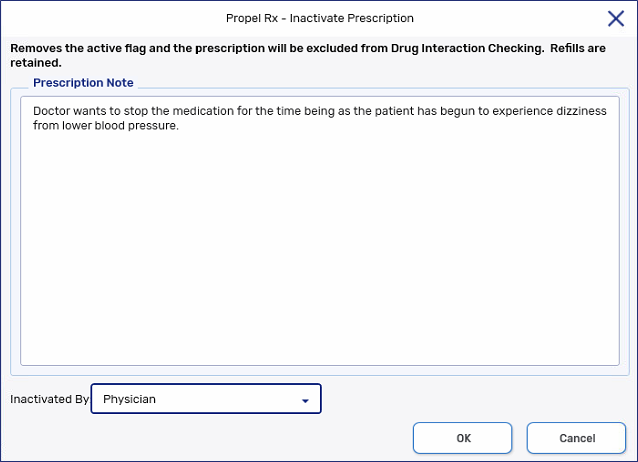
Select OK. A window appears for additional information.
-
Optional: In the Prescription Note area, enter the reason for the inactivation and select who initiated the inactivation process, if applicable.
-
Select OK. The Inactivate Rx window closes.
-
Select Save.
-
The prescription is updated on the Profile to reflect the inactivation.
-
Discontinued prescription = *D*
-
Revoked prescription = *V*
-
Inactivated prescription = *I*
-
Suspended prescription = *S*
-
-
A note is added to the prescription indicating the status change, user, date, and time.
-
A record is also added to the Patient Folder History tab to document the status change of the prescription.
-
If the prescription is non-retail, the Group Rx Status is changed to an inactive one (I for regular prescriptions and F for government prescriptions).
-
From the Patient Folder
To inactivate a prescription from the Patient Folder:
-
Open the Patient Folder. The Profile tab opens by default.
-
Uncheck the Active checkbox for the prescription that needs to be inactivated. The Inactivate Rx window opens.
You can inactivate multiple prescriptions at once by highlighting the prescriptions and selecting the Active column header.
-
Select the appropriate option.
-
Discontinue - patient will no longer take the medication, effective immediately. Repeats are removed.
-
Revoke - patient will take remaining medication until finished and then stop. Repeats are removed.
-
Inactivate - patient is not currently taking medication but may resume at a later date. Repeats are retained.
-
Suspend - patient will stop medication for a specific period and then resume on a chosen date. Repeats are retained.
-
-
Select OK. A window appears for additional information.
-
Optional: In the Prescription Note area, enter the reason for the inactivation and select who initiated the inactivation process, if applicable.
-
Select OK. The Inactivate Rx window closes.
-
Select Save.
-
The prescription is updated on the Profile to reflect the inactivation.
-
Discontinued prescription = *D*
-
Revoked prescription = *V*
-
Inactivated prescription = *I*
-
Suspended prescription = *S*
-
-
A note is added to the prescription indicating the status change, user, date, and time.
-
A record is also added to the Patient Folder History tab to document the status change of the prescription.
-
If the prescription is non-retail, the Group Rx Status is changed to an inactive one (I for regular prescriptions and F for government prescriptions).
-